向量生成
向量的生成需要与存储配合使用,这意味着你需要在理解向量之前配置存储。
向量实际上是嵌入的结果,即将各种数据(例如文本和图像)转换为密集向量表示的过程。 此步骤对于促进 Casibase 内高效数据处理和分析至关重要。 通过嵌入,聊天中的问题和存储中的知识文件将被转换为用于下一步知识搜索的向量。
1. Automatic Embedding
Casibase automatically generates vectors when you upload files to a store. After configuring a store with storage, model, and embedding providers, simply upload your files through the file tree interface. The system immediately queues them for embedding and processes them in the background.
Each file progresses through states you can monitor in the Files page: Pending, Processing, Finished, or Error. The system calculates token counts during embedding and displays them alongside each file. If embedding fails for any file, the error details appear in the file list so you can quickly identify and fix issues like missing provider configurations or unsupported file formats.
When you delete files from storage, their vectors are automatically removed from the database. This keeps your knowledge base synchronized - you won't get outdated responses from files that no longer exist.
2. 刷新向量
在 stores 菜单下的每个存储数据中,都设置了 "刷新向量" 操作按钮。 After configuring stores with storage providers, navigate to the Stores page to view the file tree for the storage providers.
By clicking on the Refresh Vectors button for a particular store, it will generate the corresponding vectors for all the files in the file tree for that store by embedding them. 下图显示了页面和操作。
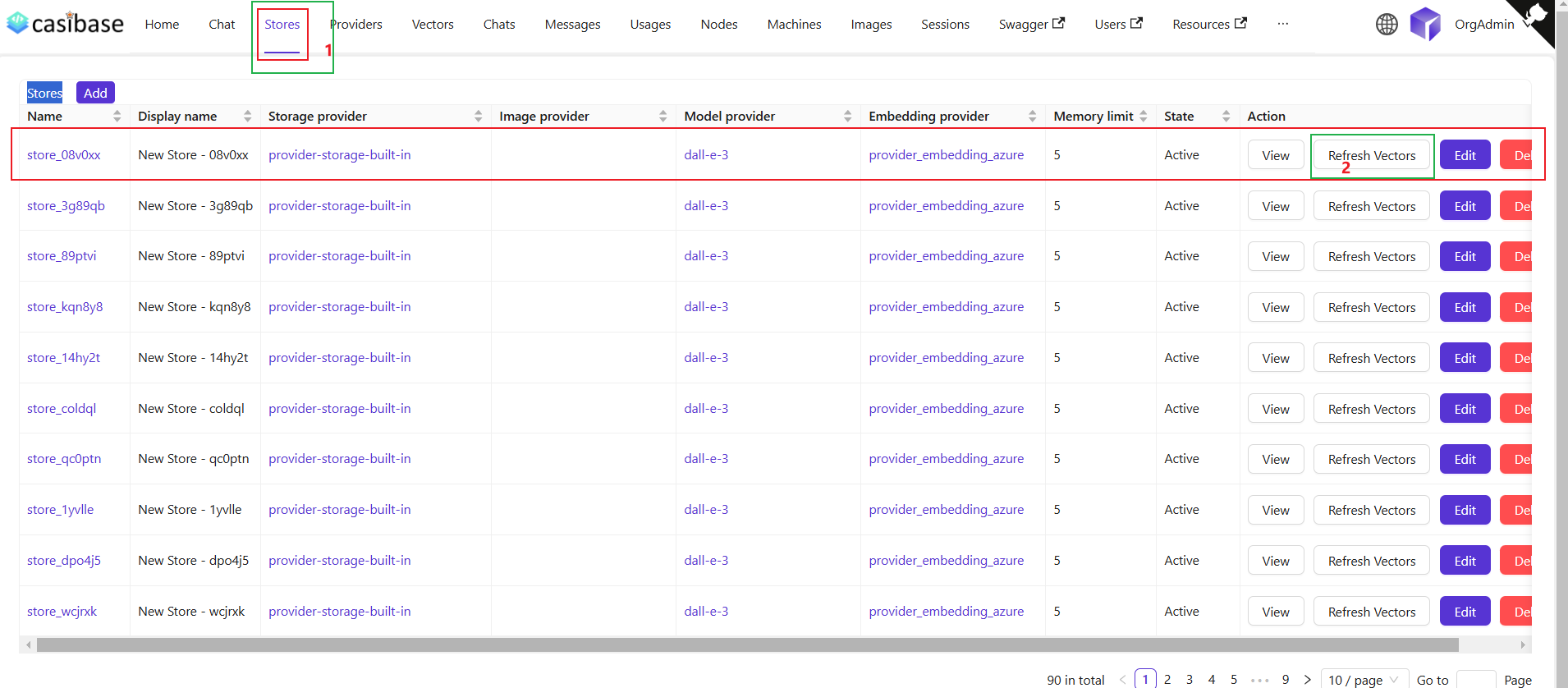
When you refresh vectors, the system automatically removes all existing vectors for that store before generating new ones. This ensures your vector database stays synchronized with your current files - if you've deleted files from storage, their vectors will be removed as well. The refresh always creates a clean, up-to-date vector set based on your current file tree.
Re-embedding Individual Files
For targeted updates, use the "Refresh Vectors" button in the Files page next to any specific file. This regenerates vectors for just that file while leaving others untouched - useful when you've changed embedding settings or need to fix errors on specific documents without reprocessing your entire knowledge base.
3. 查看向量
After that, we can view the specific vectors generated by that store in the vector menu.
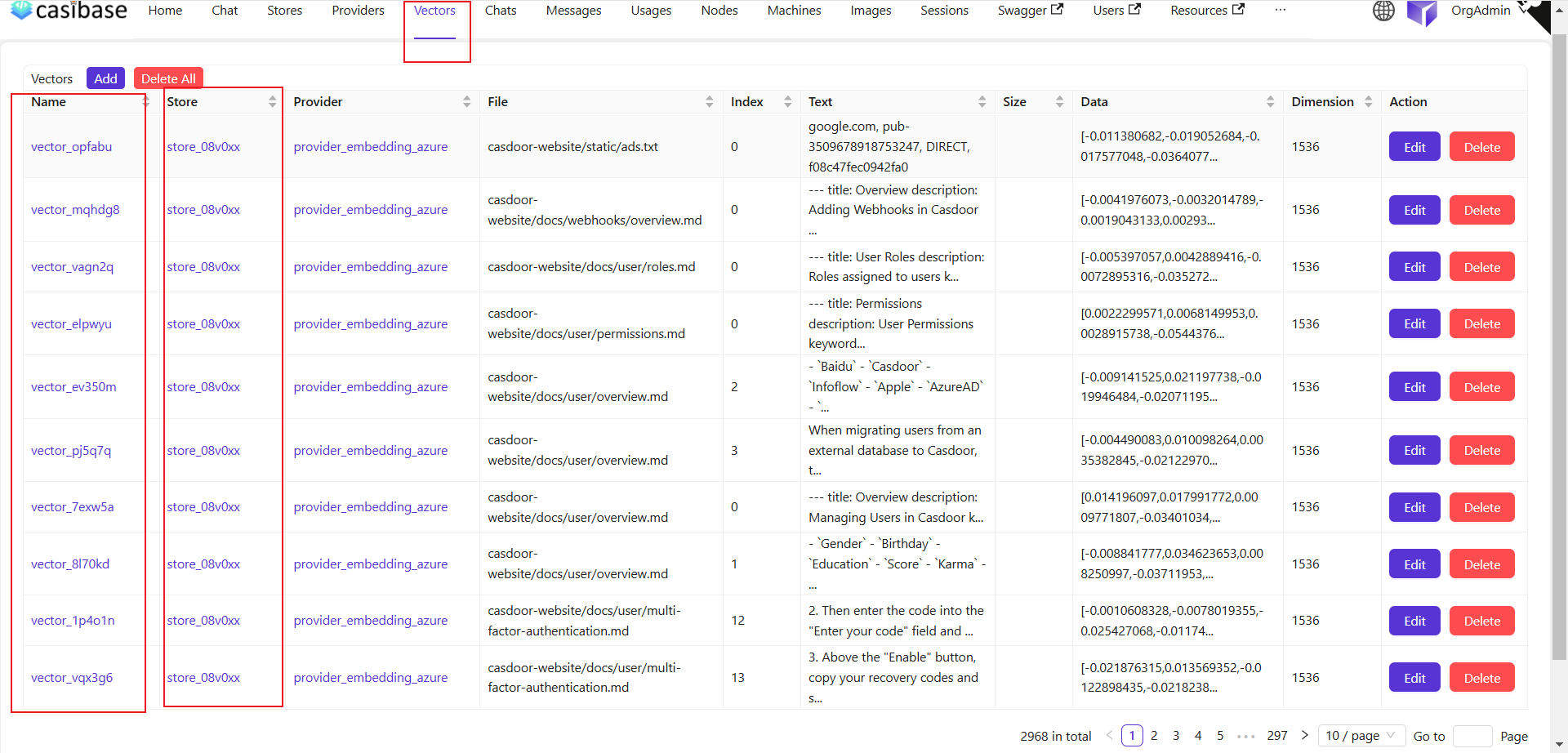
我们可以看到,上一步刷新向量中的存储文件已被转换为向量在此显示。
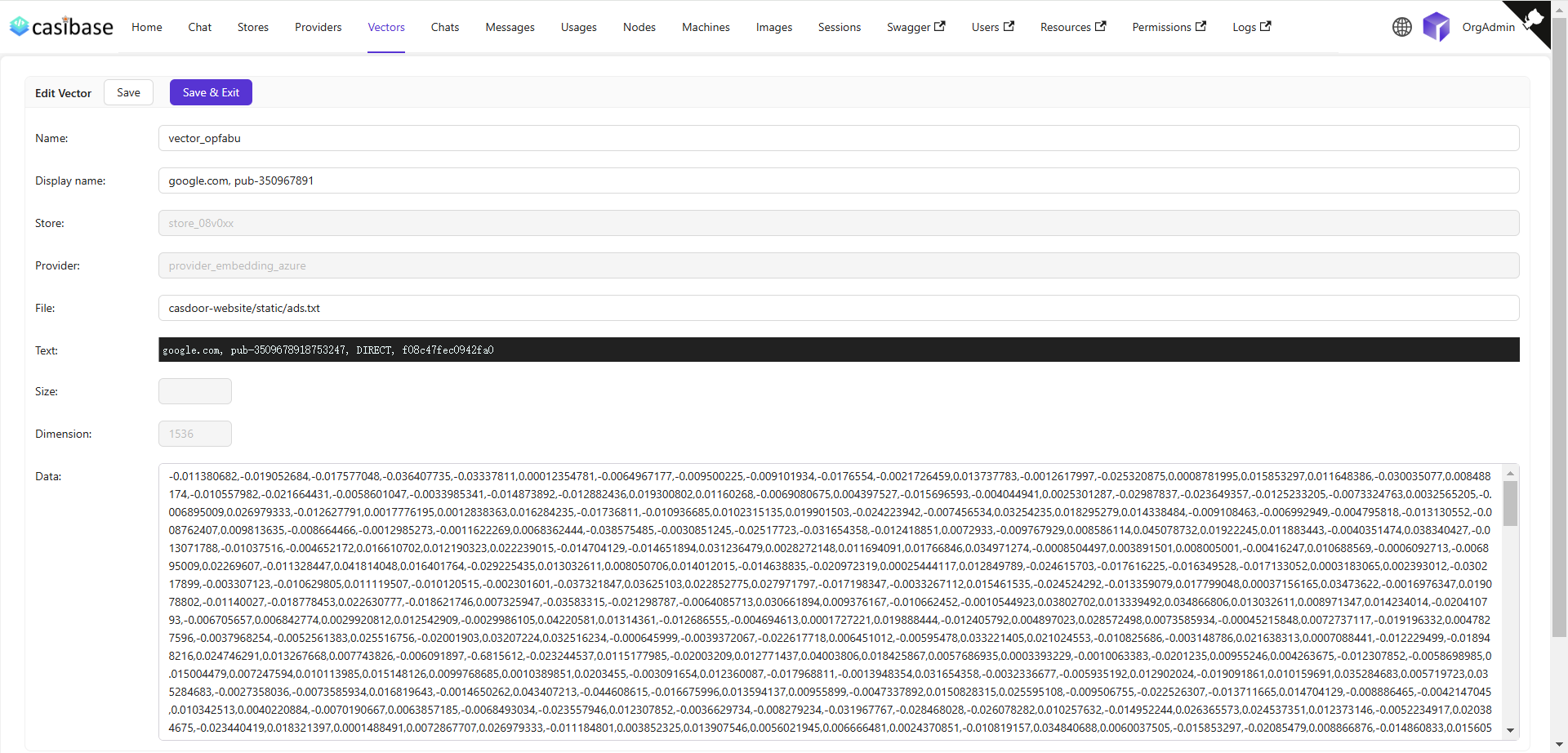
我的向量编辑页面显示了具体信息,如存储名称、嵌入模型名称、进行嵌入的文件名、文件大小、维度、向量数据等。