Генерація векторів
Генерація векторів потребує використання разом із зберіганням, що означає, що вам потрібно налаштувати зберігання перш ніж зрозуміти вектори.
Вектори насправді є результатом вбудовування, процесу перетворення різних типів даних, таких як текст та зображення, у щільні векторні представлення. Цей крок є суттєвим для забезпечення ефективної обробки та аналізу даних у Casibase. Через вбудовування, запитання в чаті та файли знань у сховищі будуть перетворені на вектори для наступного кроку пошуку знань.
1. Automatic Embedding
Casibase automatically generates vectors when you upload files to a store. After configuring a store with storage, model, and embedding providers, simply upload your files through the file tree interface. The system immediately queues them for embedding and processes them in the background.
Each file progresses through states you can monitor in the Files page: Pending, Processing, Finished, or Error. The system calculates token counts during embedding and displays them alongside each file. If embedding fails for any file, the error details appear in the file list so you can quickly identify and fix issues like missing provider configurations or unsupported file formats.
When you delete files from storage, their vectors are automatically removed from the database. This keeps your knowledge base synchronized - you won't get outdated responses from files that no longer exist.
2. Оновити вектори
Дія Оновити вектори встановлена як кнопка для кожного сховища даних у меню сховищ. After configuring stores with storage providers, navigate to the Stores page to view the file tree for the storage providers.
By clicking on the Refresh Vectors button for a particular store, it will generate the corresponding vectors for all the files in the file tree for that store by embedding them. Наступна ілюстрація демонструє сторінку та операцію.
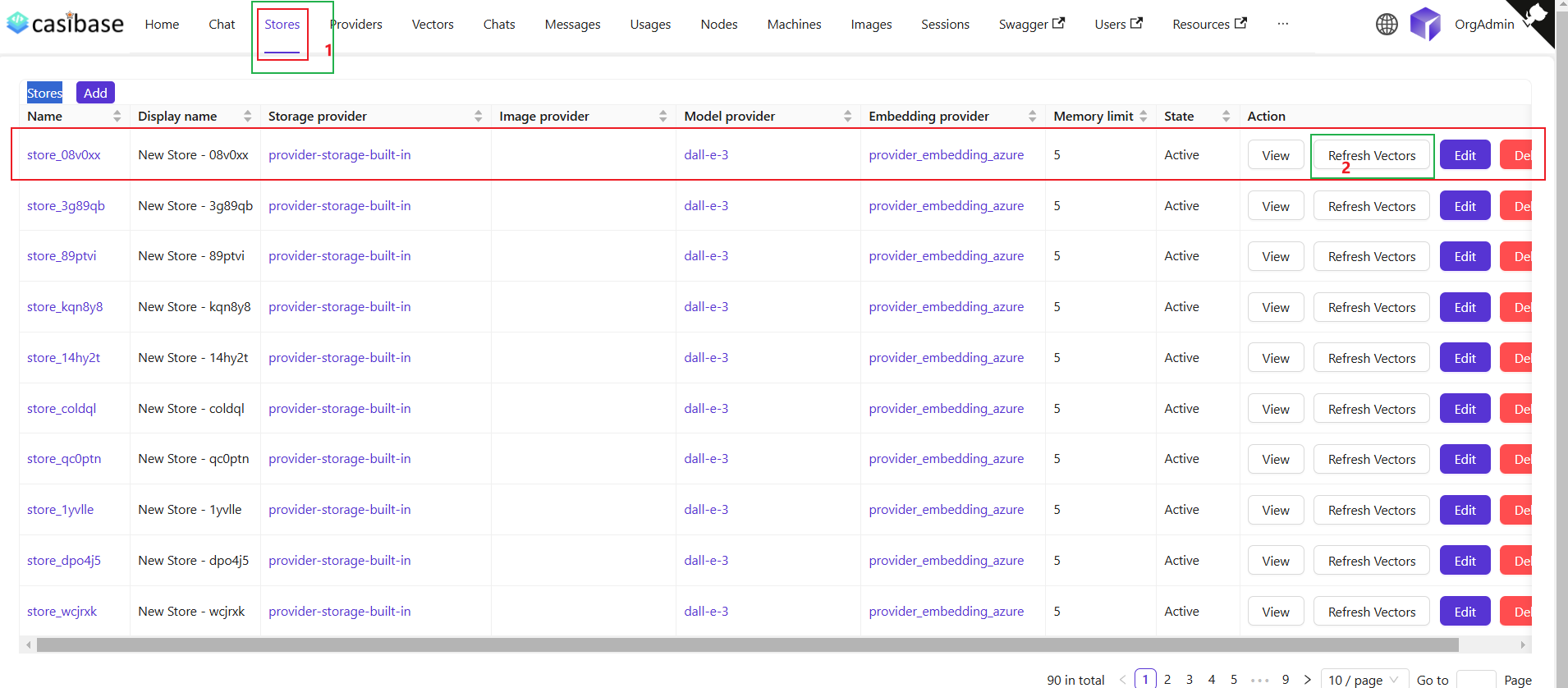
When you refresh vectors, the system automatically removes all existing vectors for that store before generating new ones. This ensures your vector database stays synchronized with your current files - if you've deleted files from storage, their vectors will be removed as well. The refresh always creates a clean, up-to-date vector set based on your current file tree.
Re-embedding Individual Files
For targeted updates, use the "Refresh Vectors" button in the Files page next to any specific file. This regenerates vectors for just that file while leaving others untouched - useful when you've changed embedding settings or need to fix errors on specific documents without reprocessing your entire knowledge base.
3. Переглянути вектори
After that, we can view the specific vectors generated by that store in the vector menu.
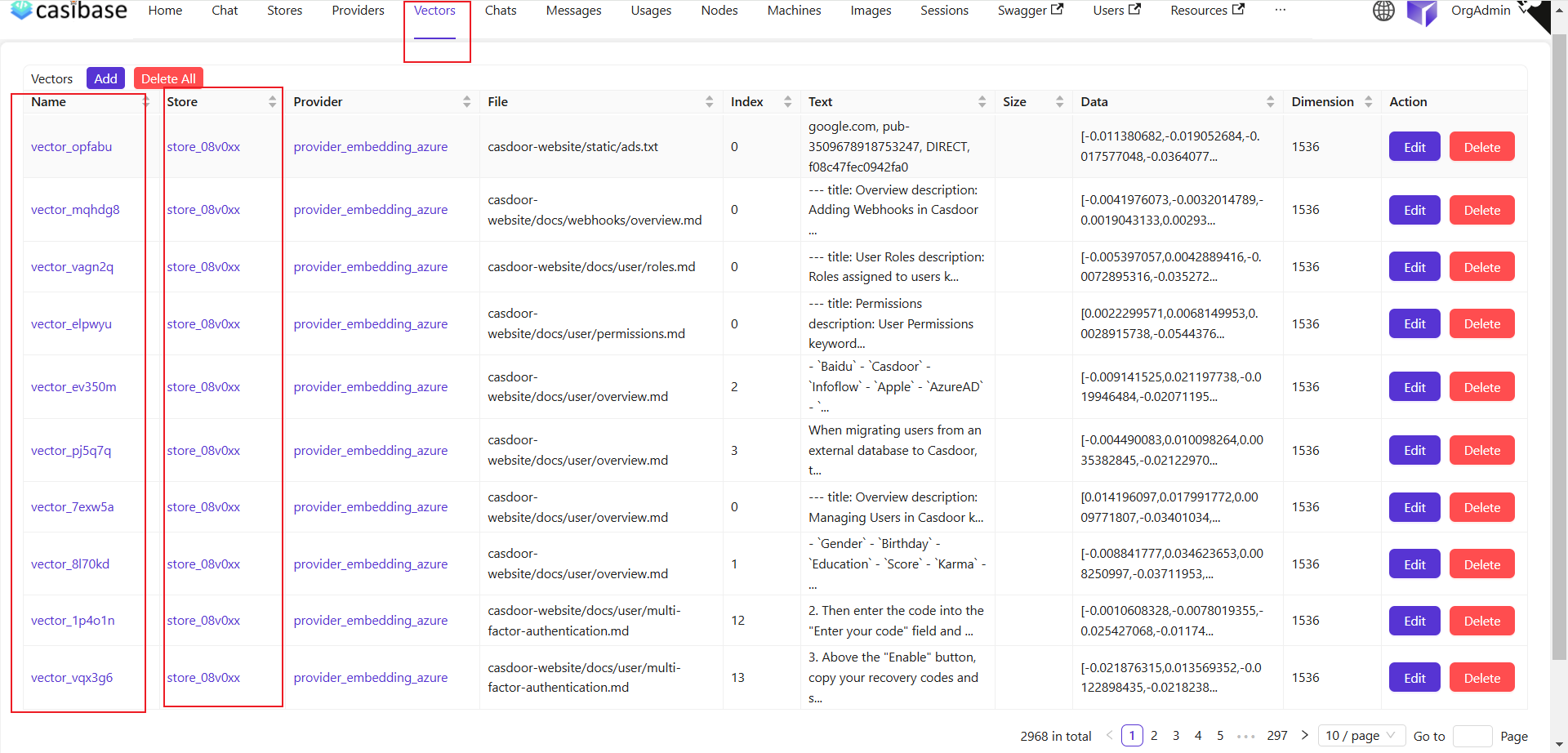
Ми можемо бачити, що файли сховища з попереднього кроку оновлення векторів були перетворені на вектори, які відображаються тут.
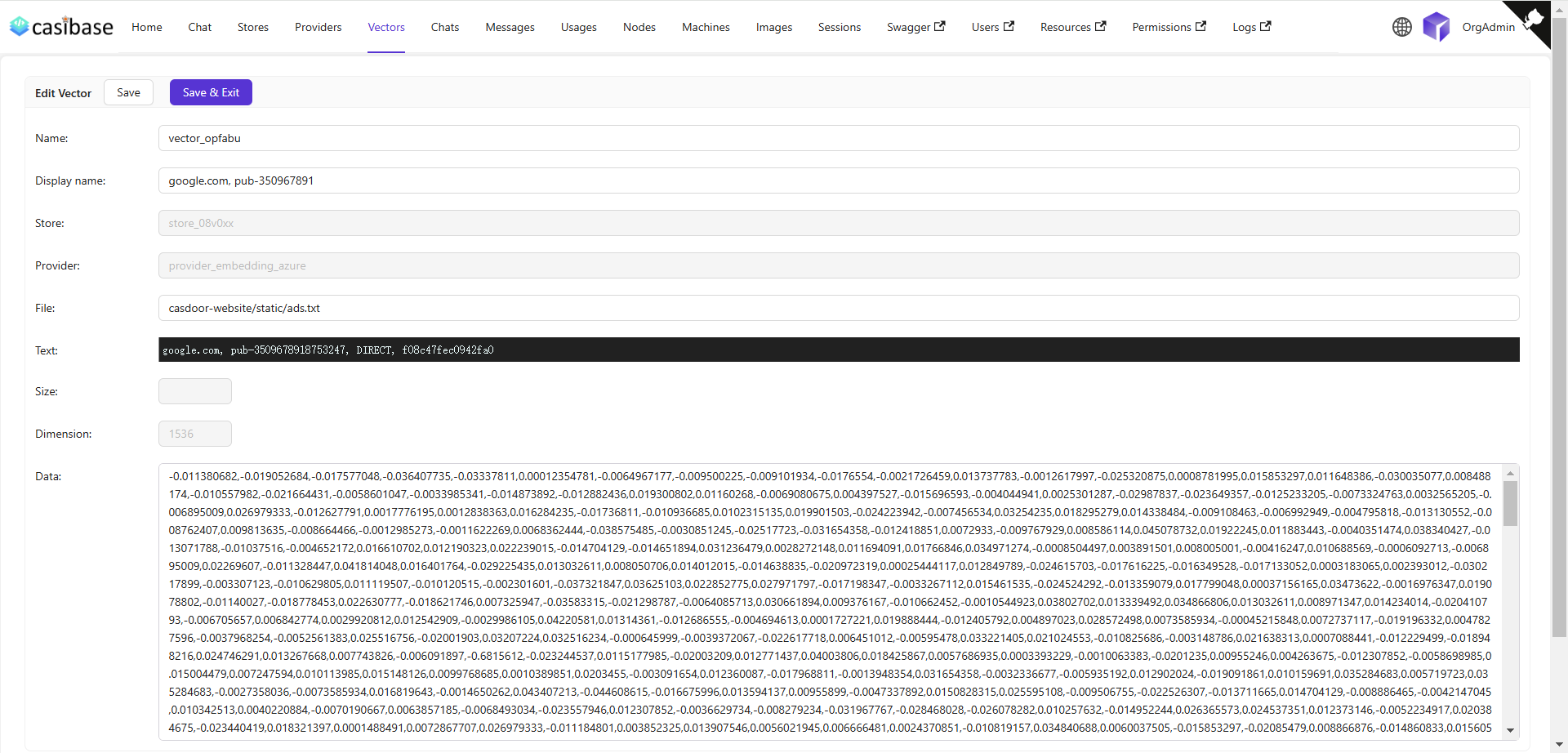
Моя сторінка редагування векторів показує конкретну інформацію, таку як назва сховища, назва моделі вбудовування, назва файлу, який було вбудовано, розмір файлу, розмірність, дані вектора тощо.