Generación de vectores
La generación de vectores necesita ser utilizada junto con el almacenamiento, lo que significa que debe configurar el almacenamiento antes de entender los vectores.
Los vectores son en realidad el resultado de la incrustación (embedding), que es el proceso de convertir varios tipos de datos (como texto e imágenes) en representaciones vectoriales densas. Este paso es crucial para el procesamiento y análisis eficiente de datos en Casibase. A través de la incrustación, las preguntas en los chats y los archivos de conocimiento en el almacenamiento se convertirán en vectores, que se utilizarán en el siguiente paso de búsqueda de conocimiento.
1. Automatic Embedding
Casibase automatically generates vectors when you upload files to a store. After configuring a store with storage, model, and embedding providers, simply upload your files through the file tree interface. The system immediately queues them for embedding and processes them in the background.
Each file progresses through states you can monitor in the Files page: Pending, Processing, Finished, or Error. The system calculates token counts during embedding and displays them alongside each file. If embedding fails for any file, the error details appear in the file list so you can quickly identify and fix issues like missing provider configurations or unsupported file formats.
When you delete files from storage, their vectors are automatically removed from the database. This keeps your knowledge base synchronized - you won't get outdated responses from files that no longer exist.
2. Actualización de vectores
La operación de actualización de vectores se establece como un botón para cada almacenamiento de datos en el menú de almacenamiento. After configuring stores with storage providers, navigate to the Stores page to view the file tree for the storage providers.
By clicking on the Refresh Vectors button for a particular store, it will generate the corresponding vectors for all the files in the file tree for that store by embedding them. A continuación se muestra la página y la operación.
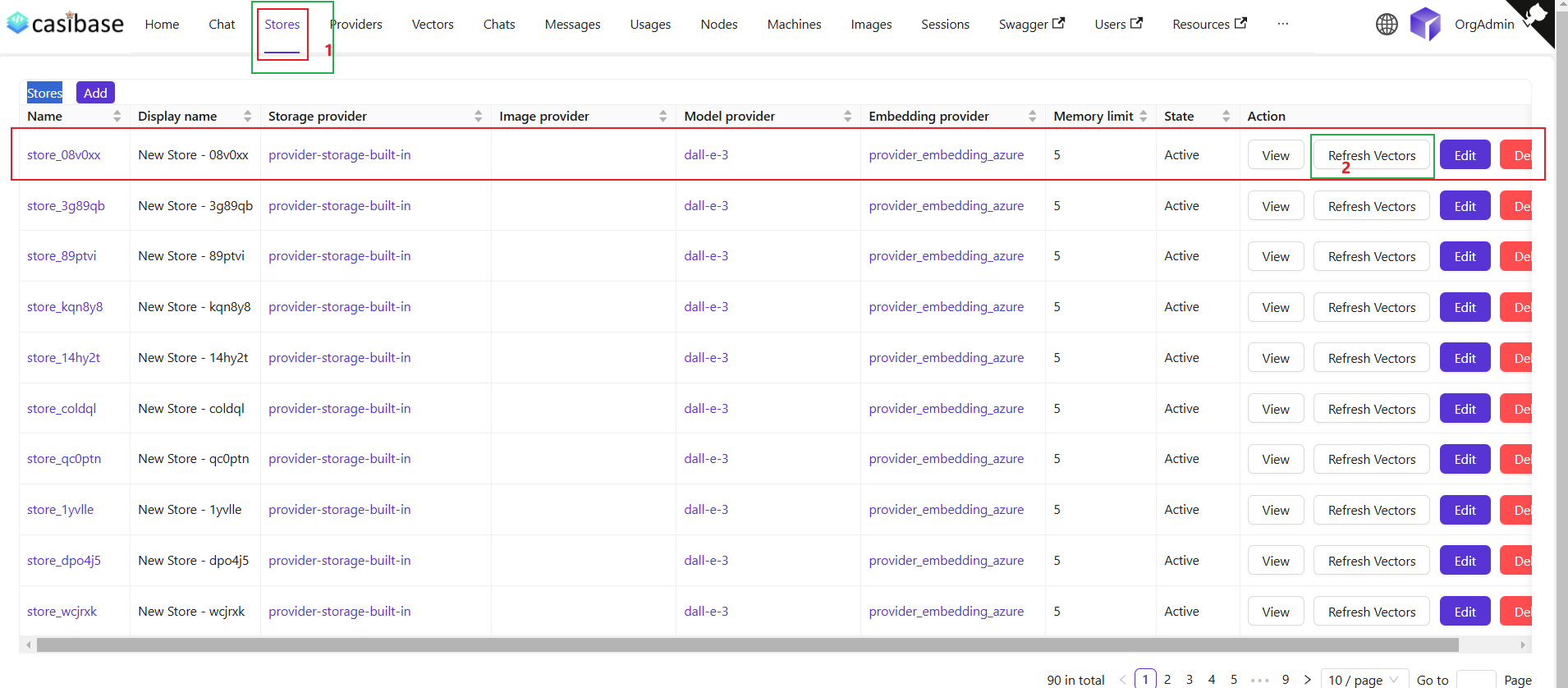
When you refresh vectors, the system automatically removes all existing vectors for that store before generating new ones. This ensures your vector database stays synchronized with your current files - if you've deleted files from storage, their vectors will be removed as well. The refresh always creates a clean, up-to-date vector set based on your current file tree.
Re-embedding Individual Files
For targeted updates, use the "Refresh Vectors" button in the Files page next to any specific file. This regenerates vectors for just that file while leaving others untouched - useful when you've changed embedding settings or need to fix errors on specific documents without reprocessing your entire knowledge base.
3. Visualización de vectores
After that, we can view the specific vectors generated by that store in the vector menu.
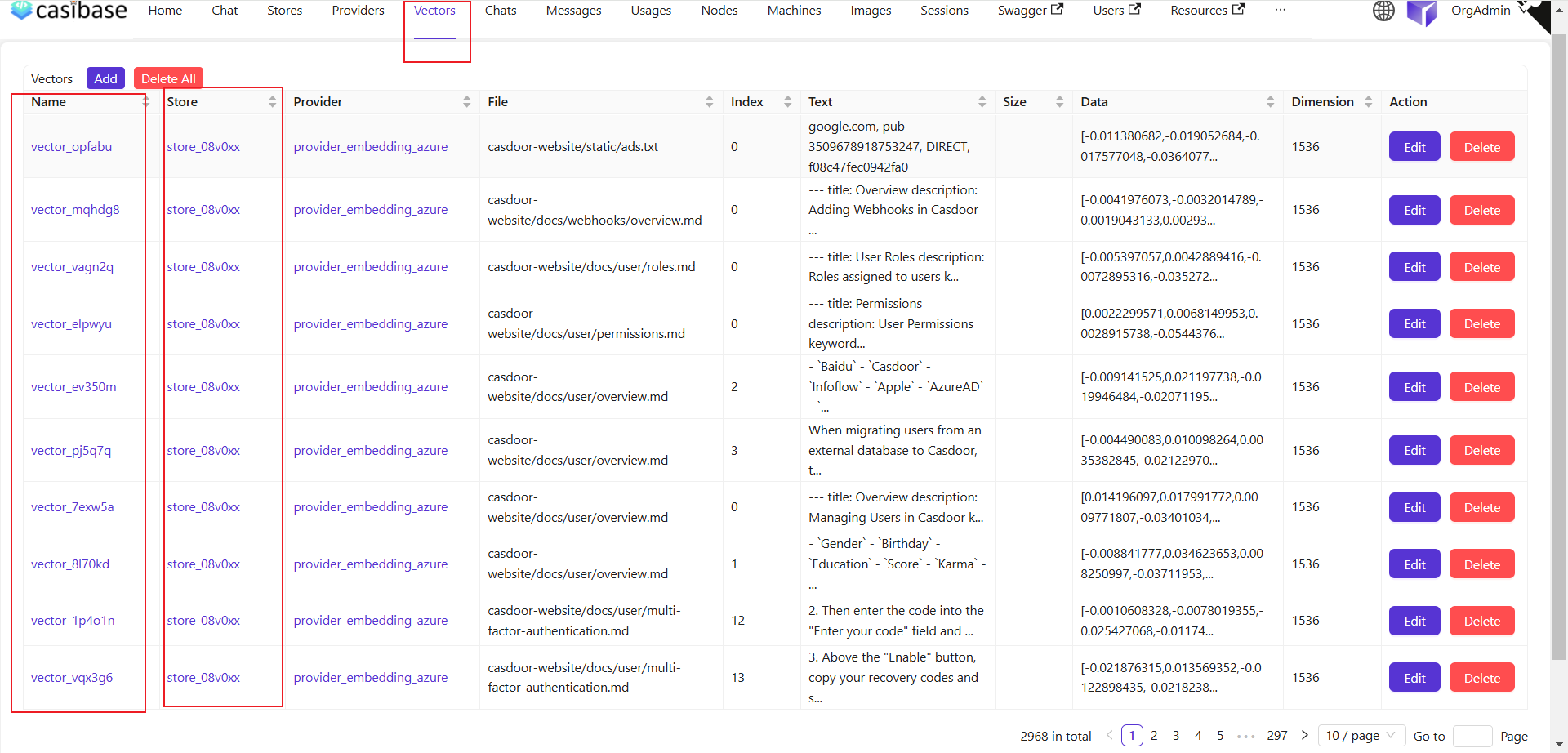
Podemos ver que los archivos de almacenamiento del paso anterior de actualización de vectores se han convertido en vectores que se muestran aquí.
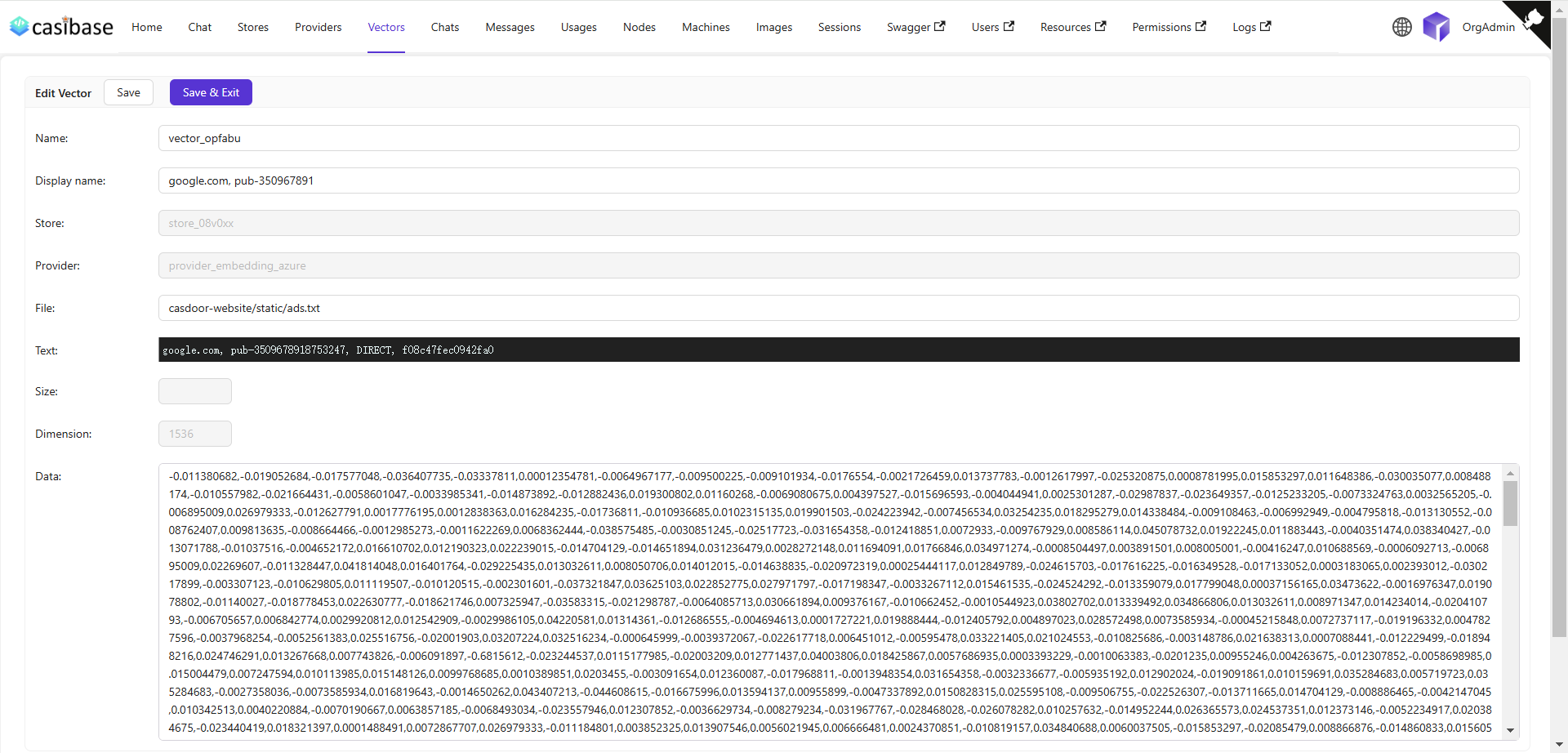
Mi página de edición de vectores muestra información específica como el nombre del almacenamiento, el nombre del modelo de incrustación, el nombre del archivo que se ha incrustado, el tamaño del archivo, la dimensión, los datos vectoriales, etc.