벡터 생성
벡터 생성은 스토어와 함께 사용해야 하며, 이는 벡터를 이해하기 전에 스토어를 이해해야 한다는 것을 의미합니다.
벡터는 실제로 임베딩의 결과물로, 텍스트와 이미지와 같은 다양한 유형의 데이터를 밀집 벡터 표현으로 변환하는 프로세스입니다. 이 단계는 Casibase에서 효율적인 데이터 처리와 분석을 위해 매우 중요합니다. 임베딩을 통해 채팅의 질문과 스토어의 지식 파일이 벡터로 변환되며, 이는 다음 단계인 지식 검색에서 사용됩니다.
1. Automatic Embedding
Casibase automatically generates vectors when you upload files to a store. After configuring a store with storage, model, and embedding providers, simply upload your files through the file tree interface. The system immediately queues them for embedding and processes them in the background.
Each file progresses through states you can monitor in the Files page: Pending, Processing, Finished, or Error. The system calculates token counts during embedding and displays them alongside each file. If embedding fails for any file, the error details appear in the file list so you can quickly identify and fix issues like missing provider configurations or unsupported file formats.
When you delete files from storage, their vectors are automatically removed from the database. This keeps your knowledge base synchronized - you won't get outdated responses from files that no longer exist.
2. 벡터 새로고침
벡터 새로고침은 스토어 메뉴 아래 각 스토어 데이터의 버튼으로 설정되어 있습니다. After configuring stores with storage providers, navigate to the Stores page to view the file tree for the storage providers.
By clicking on the Refresh Vectors button for a particular store, it will generate the corresponding vectors for all the files in the file tree for that store by embedding them. 아래 그림은 페이지와 작업을 보여줍니다.
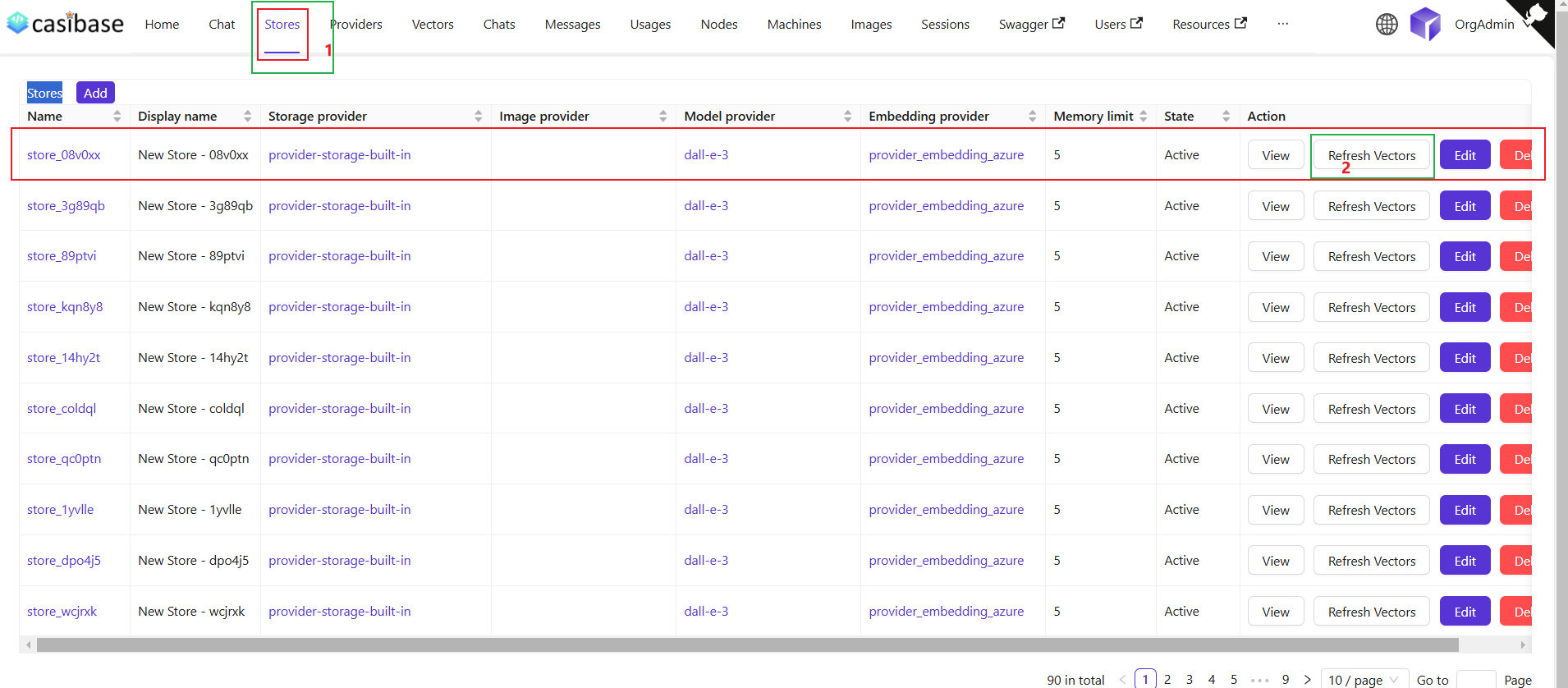
When you refresh vectors, the system automatically removes all existing vectors for that store before generating new ones. This ensures your vector database stays synchronized with your current files - if you've deleted files from storage, their vectors will be removed as well. The refresh always creates a clean, up-to-date vector set based on your current file tree.
Re-embedding Individual Files
For targeted updates, use the "Refresh Vectors" button in the Files page next to any specific file. This regenerates vectors for just that file while leaving others untouched - useful when you've changed embedding settings or need to fix errors on specific documents without reprocessing your entire knowledge base.
3. 벡터 보기
After that, we can view the specific vectors generated by that store in the vector menu.
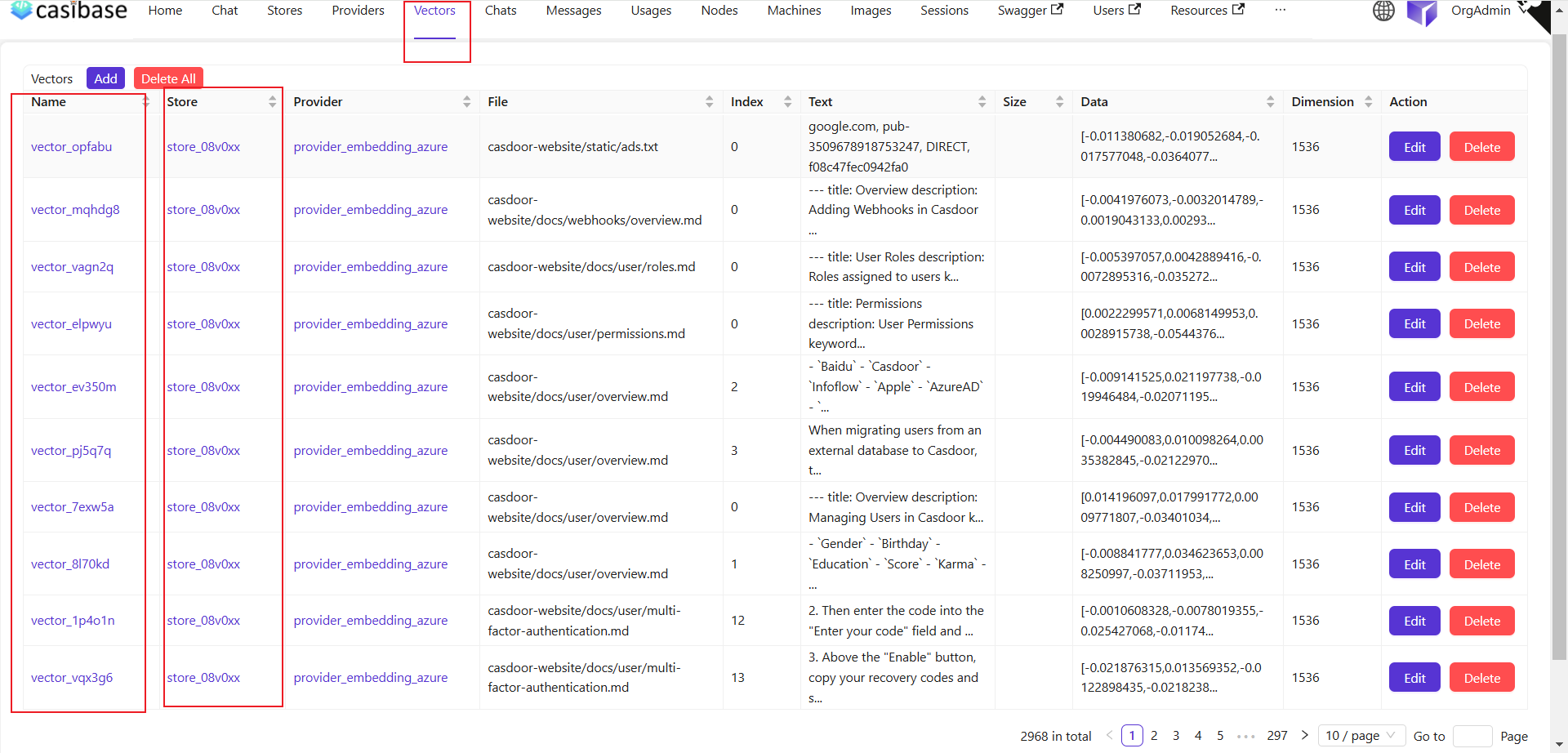
볼 수 있듯이, 이전 벡터 새로고침 단계의 스토어 파일들이 벡터로 변환되어 여기에 표시됩니다.
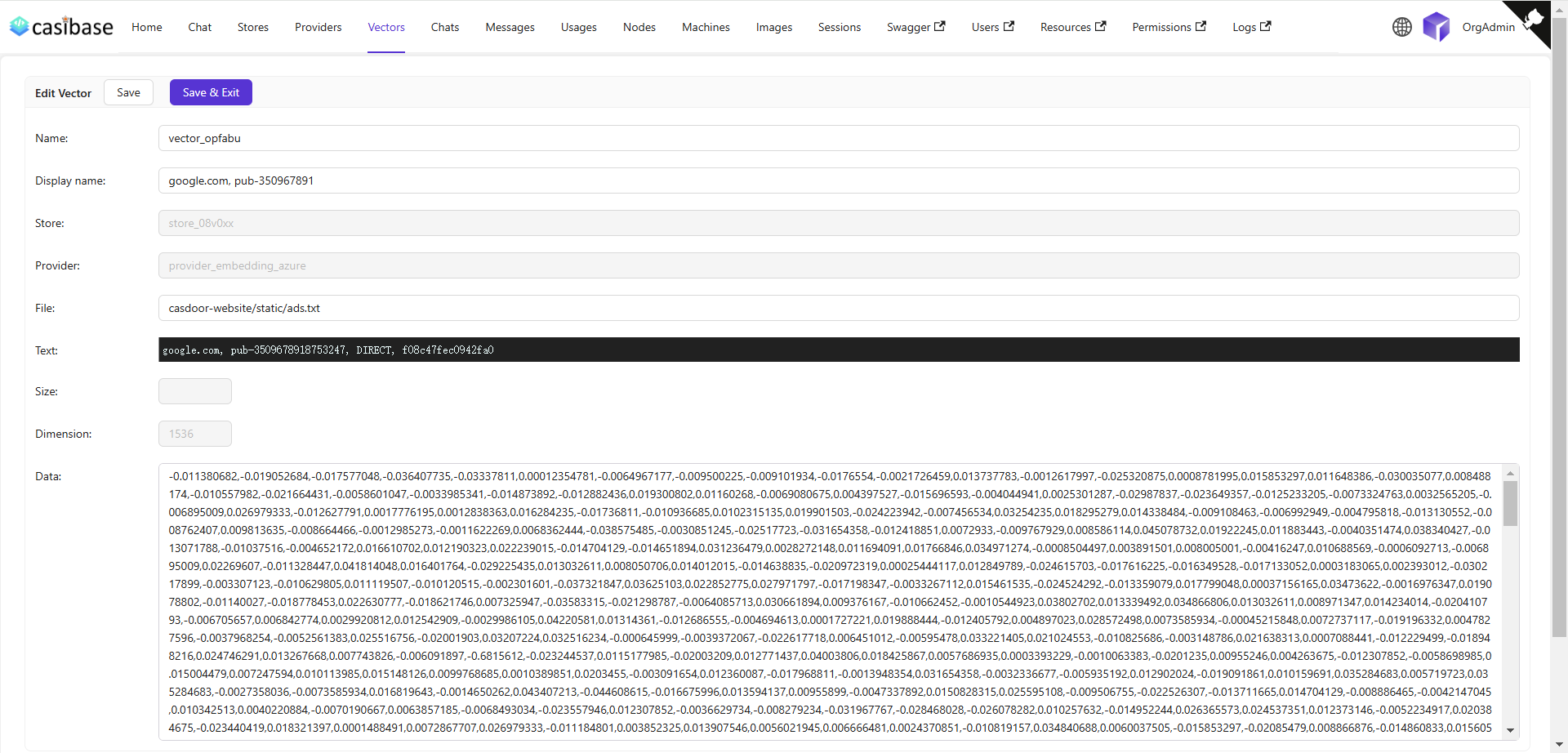
내 벡터 편집 페이지는 스토어 이름, 임베딩 모델 이름, 임베딩된 파일 이름, 파일 크기, 차원, 벡터 데이터 등과 같은 구체적인 정보를 보여줍니다.