Descripción general
En esta sección, presentamos la parte más esencial de Casibase: los chats y su gestión.
1. Chats
When you log in to Casibase, the chat interface is your starting point. This makes it easy to immediately begin conversations with AI without navigating through menus. Una vez que hemos configurado el almacenamiento, podemos conversar con la IA. Como se muestra a continuación:
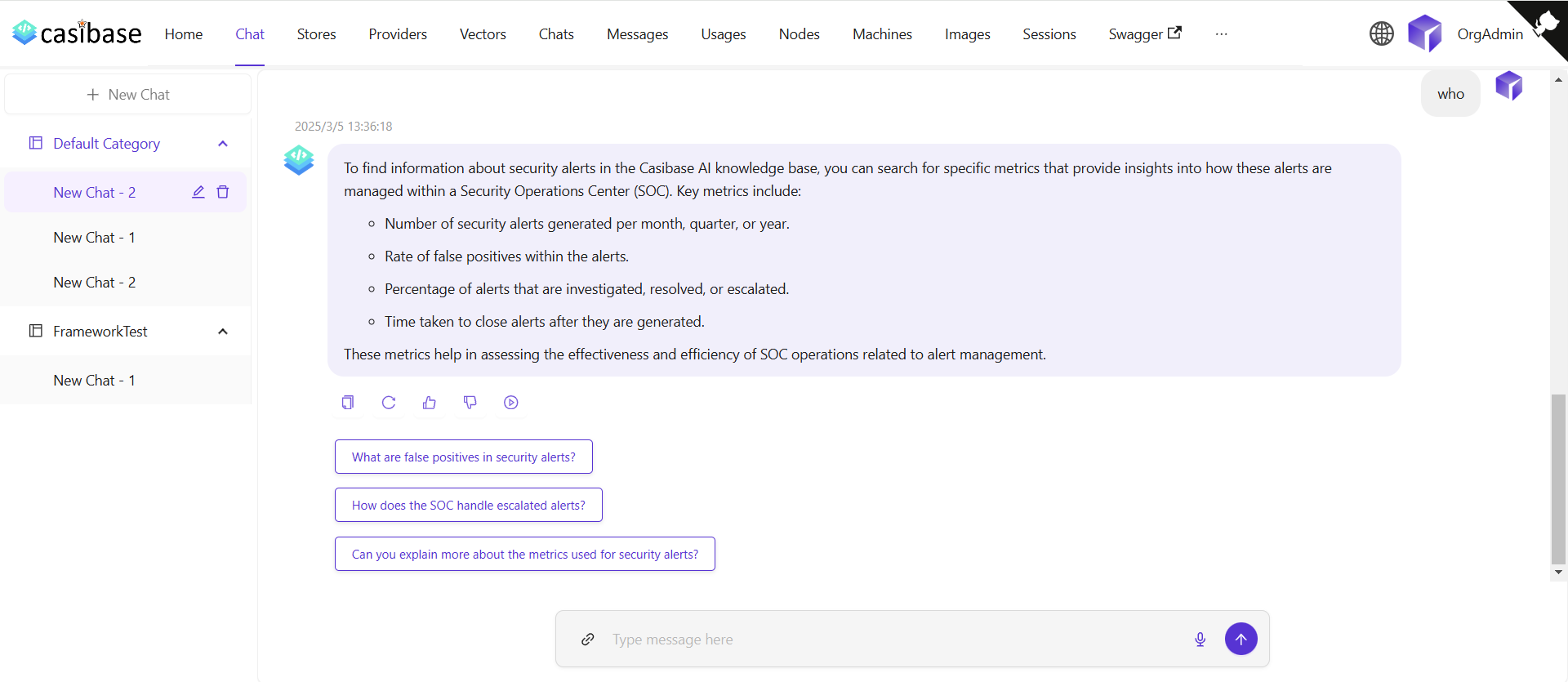
The chat interface adapts to different AI capabilities. When using OpenAI or Alibaba Cloud providers, you'll see a web search toggle that lets the AI fetch current information from the internet. Search results appear inline with the response, complete with source URLs and timestamps for verification. For OpenAI's reasoning models (o1 and o1-mini), the chat displays the model's step-by-step thinking process in expandable sections, letting you follow along as it works through complex problems.
Source Attribution
When the AI provides answers, you can trace where the information came from through two types of sources:
Knowledge sources appear when chatting with a store that has embedded documents. Click the button showing the number of knowledge sources to open a drawer that displays each relevant document fragment with its relevance score. You can click on any source to view the complete vector entry, or click on the file name/icon to jump directly to that file in the store's file viewer with the specific document pre-selected.
Web sources appear when web search is enabled. These show the websites the AI referenced when answering your question, complete with titles, URLs, and brief descriptions. The drawer displays search results with timestamps and allows you to visit the original sources.
2. Gestión de chats
Podemos gestionar nuestras sesiones de chat desde el menú de chats.
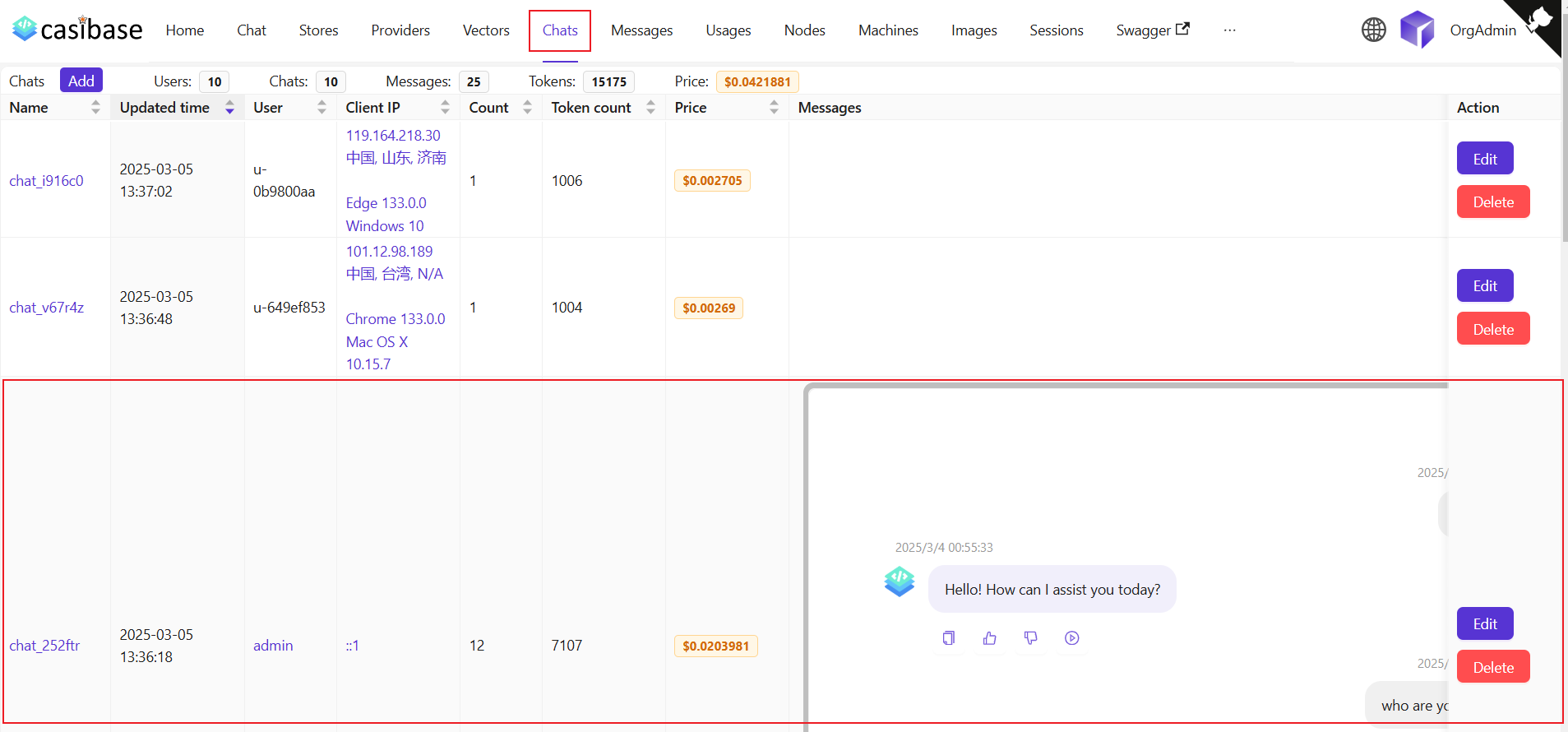
Esta página permite a los usuarios ver los chats creados, también pueden hacer clic en editar para verlos o editarlos. Regular users can access and view their own chat sessions, while administrators have full access to all chats in the system for management purposes. Muestran la siguiente información:
Nombre: el nombre del chat creado.Hora de actualización: la hora en que se actualizó el chat.Usuario: el usuario al que pertenece el chat.IP del cliente: la dirección IP del cliente para el chat.Contador: el número de entradas y salidas para este chat.Número de tokens: el número total de tokens utilizados en este chat.Precio: el costo total de este chat.Mensajes: muestra el contenido de los mensajes del chat.Almacenamiento: muestra el almacenamiento al que pertenece el chat.Model Provider: The AI provider used for this chat (e.g., OpenAI, Claude).Categoría: muestra la categoría a la que pertenece el chat.
Token usage and costs are automatically tracked for billing purposes. See the Billing & Usage section for more details on how transactions are created and managed.