Overview
In this section, we introduce the most central part of Casibase: chat and its management.
1. Chat
When you log in to Casibase, the chat interface is your starting point. This makes it easy to immediately begin conversations with AI without navigating through menus. Once we have configured the store, we can have a dialogue with the AI. This is shown in the image below:
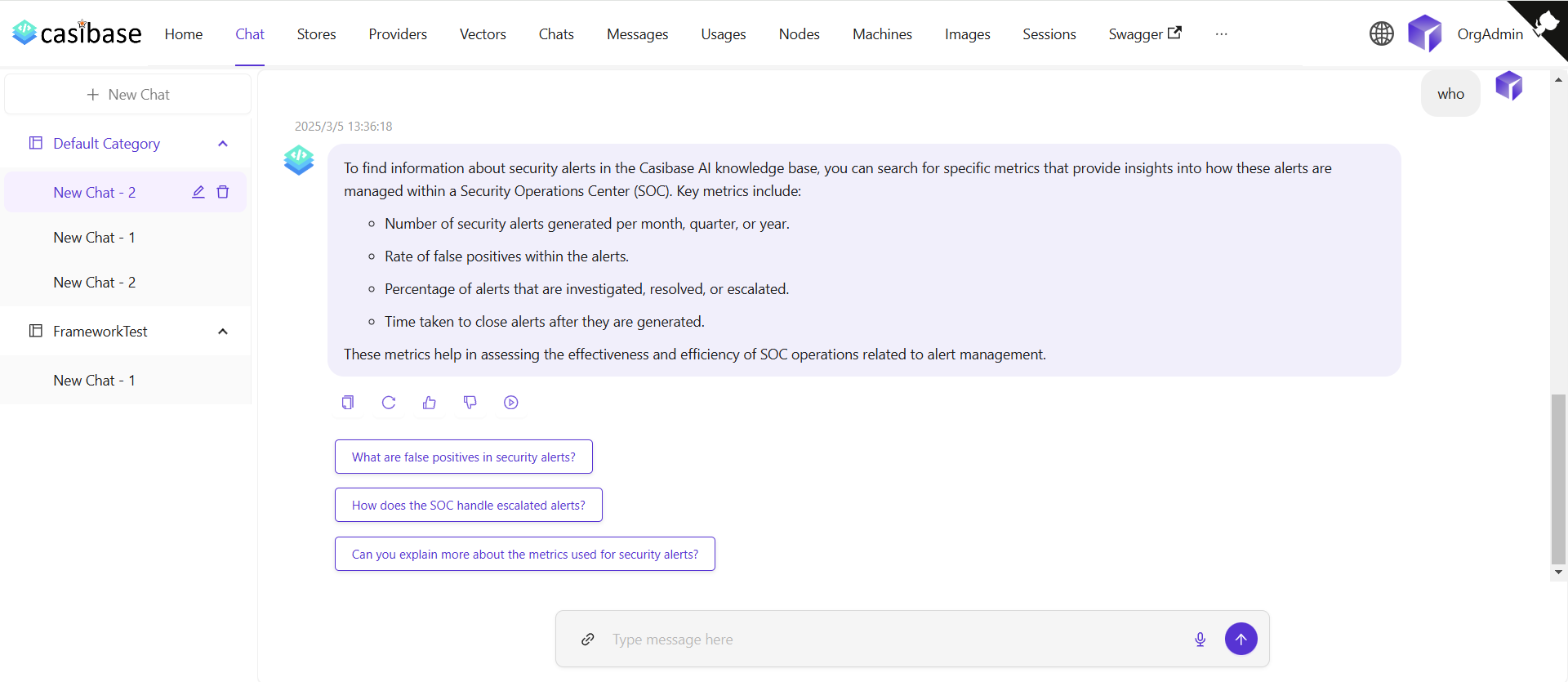
The chat interface adapts to different AI capabilities. When using OpenAI or Alibaba Cloud providers, you'll see a web search toggle that lets the AI fetch current information from the internet. Search results appear inline with the response, complete with source URLs and timestamps for verification. For OpenAI's reasoning models (o1 and o1-mini), the chat displays the model's step-by-step thinking process in expandable sections, letting you follow along as it works through complex problems.
Source Attribution
When the AI provides answers, you can trace where the information came from through two types of sources:
Knowledge sources appear when chatting with a store that has embedded documents. Click the button showing the number of knowledge sources to open a drawer that displays each relevant document fragment with its relevance score. You can click on any source to view the complete vector entry, or click on the file name/icon to jump directly to that file in the store's file viewer with the specific document pre-selected.
Web sources appear when web search is enabled. These show the websites the AI referenced when answering your question, complete with titles, URLs, and brief descriptions. The drawer displays search results with timestamps and allows you to visit the original sources.
2. Chats (Chat management)
We can manage our chat sessions from the Chats menu.
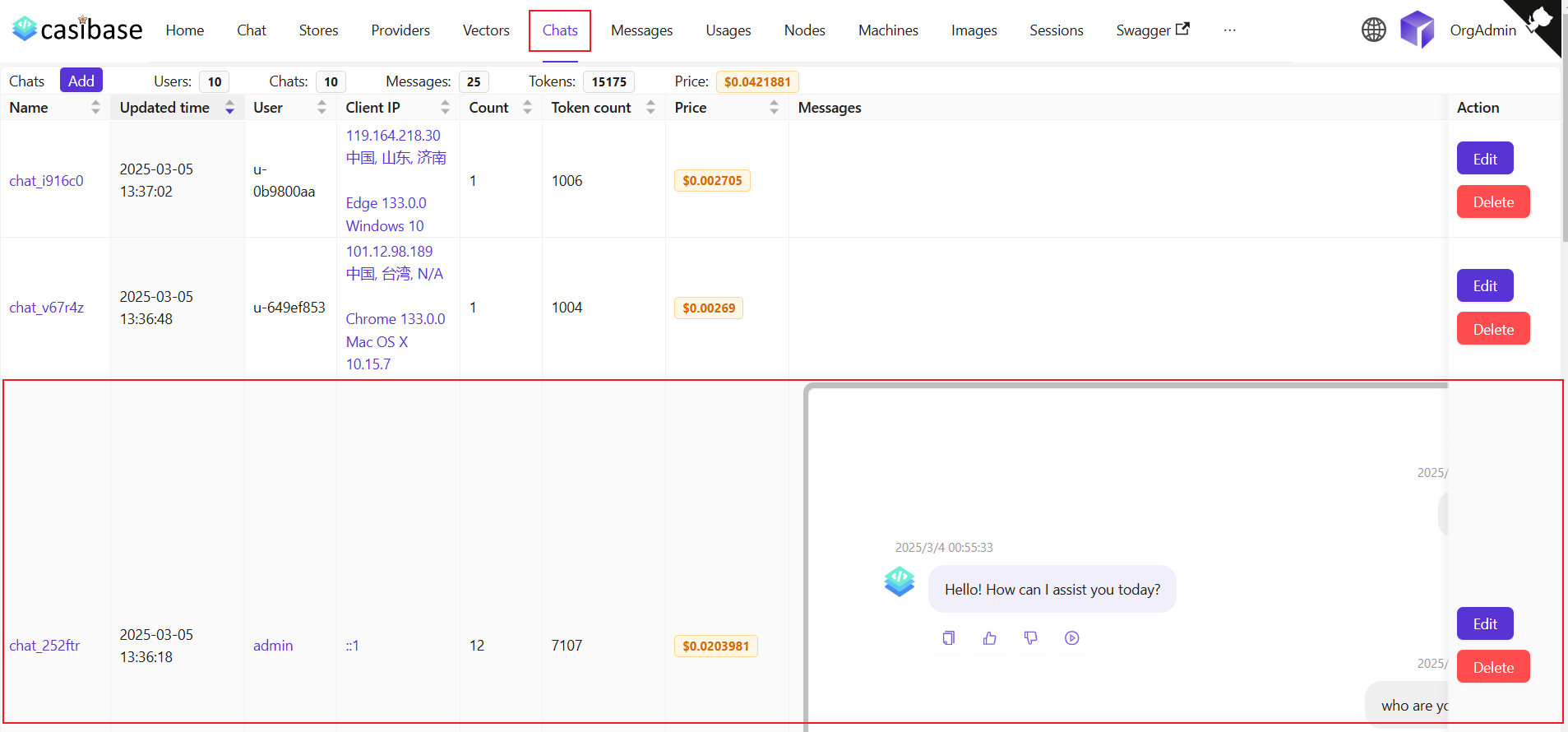
This page allows the user to view the information of the created chats, and the user can also click on Edit to view or edit them. Regular users can access and view their own chat sessions, while administrators have full access to all chats in the system for management purposes. They display the following information:
Name: The name of the created chat.Updated time: The time when the chat is Updated.User: The user to whom the chat belongs.Client IP: Client IP of the chat.Count: Number of inputs and outputs for this chat.Token count: The total number of tokens used for this chat.Price: Total price spent on this chat.Messages: Showing the content of the chat's message.Store: Display the Store to which the chat belongs.Model Provider: The AI provider used for this chat (e.g., OpenAI, Claude).Category: Display the Category to which the chat belongs.
Token usage and costs are automatically tracked for billing purposes. See the Billing & Usage section for more details on how transactions are created and managed.